Skip to content
A little preparation. A clearer start.

A clear start for every screen.

Gather your device details, count the screens you want to use together, and ask for the instructions that fit your setup.

From the app store to your first screen

A better start
with HOT Player.

Find your device, follow its installation steps, and keep player activation separate from your service plan. Our guide includes the official Fire TV download route and illustrated help.

Choose the method for your operating system and model.

HOT Player setupYour screen.
Your next step.
Fire TVSmart TVMobile & desktop
Before the first stream

A few details now.
A clearer setup later.

  1. 01

    Tell us your setup

    Share your device models and the number of streams you want to use together.

  2. 02

    Confirm the details

    Check your plan, player, trial allowance and viewing rules.

  3. 03

    Follow your instructions

    Use the setup path confirmed for your supported device and player.

  4. 04

    Test your screens

    Try playback within your confirmed connection allowance.

Have these ready

Your setup checklist.

  • Device model and operating-system version
  • Player name, version and activation details
  • Preferred term and active connection count
  • Confirmed trial or paid-plan allowance
Check your devices

Use instructions for your exact setup.

Confirm the supported player and official installation source with us. A generic TV brand or app name is not enough to choose the right steps.

Get Setup Help
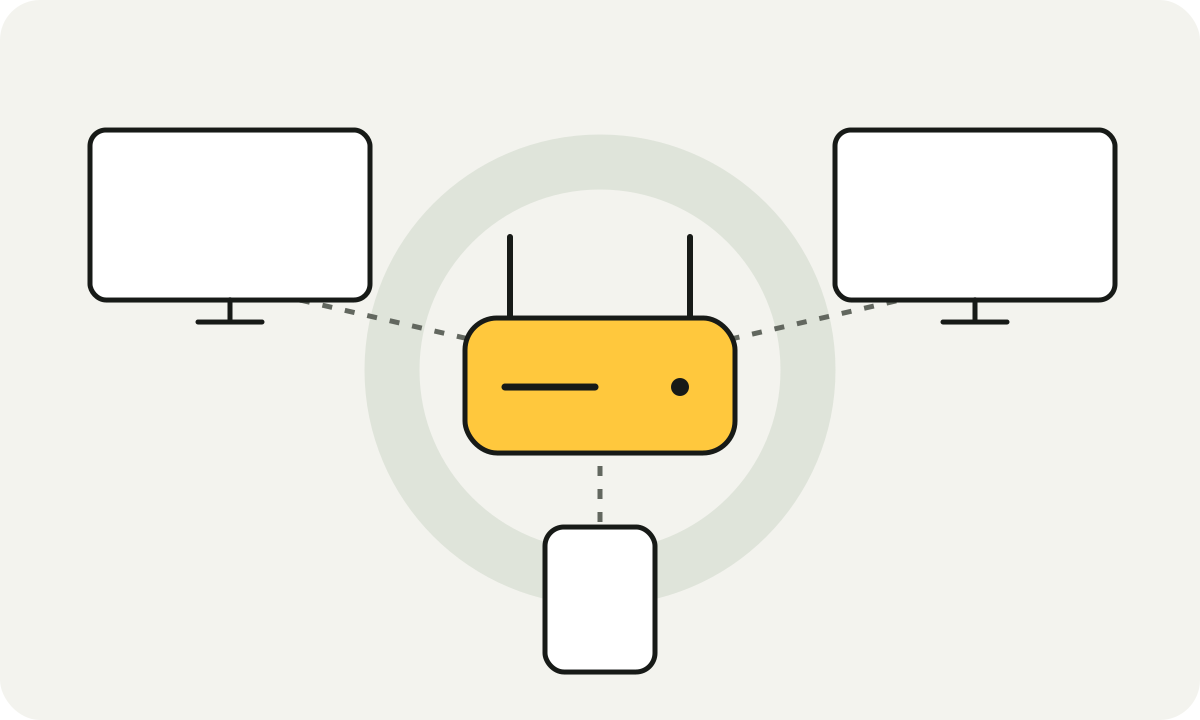
Illustration of a home network and several screens.
Once your setup is confirmed

Start with one.
Then test the rest.

Try one authorized stream first. If your allowance permits it, add the other screens you intend to use. Record what happens, and change one condition at a time.

Plan a useful network test

If you need help, describe what you see.

Include your device and player versions, the number of active streams, the time and any error text. Tell us whether the first screen continues when another starts.

Keep passwords, payment details and full private playlist URLs out of public posts or screenshots. Start with the symptom and your device information.

Contact PolyView TV
After installation

Test one screen.
Then build up.

An installed app, an activated player and a working playlist are three separate checks.

Player vs. subscription
  1. 1. Open the appCheck that the player launches on the intended device.
  2. 2. Check activation and playlistFollow the confirmed setup details; do not guess at login fields.
  3. 3. Play one authorized streamNote any error message, time and device version.
  4. 4. Add your other screensStay within your confirmed connection allowance and network rules.
Your next viewing moment

Ready to find
your screen count?

Compare the terms, or ask about a free trial for your setup.

Trial availability and limits are confirmed before you begin.